Wired Ethernet
The procedure for connecting to the wired (ethernet) network depends on which building you're located in.
The FMRIB and Wolfson buildings provide at least one 1Gb ethernet connection to all desks. It may be possible to request additional sockets for additional devices, but this is not always possible. In addition there are a small number of higher-performance (MGig) ports available for devices that can take advantage of these.
Network access is divided up into classes of device, with each class being allowed access to different resources.
The FMRIB and Wolfson buildings provide at least one 1Gbit ethernet connection to all desks. It may be possible to request additional sockets for additional devices, but this is not always possible. In addition there are a small number of higher-performance (MGig) ports available for devices that can take advantage of these.
Network access depends on your relationship to OxCIN and all devices start on the OWL Visitor network.
If the visitor has Eduroam credentials then these can be used in the 802.1x authentication window that appears on connection. This will put you on the University Eduroam network. See the University IT instructions for achieving the login.
Other visitors can use short-term credentials in the OWL captive portal web page that pops up on connection to the OWL network. These credentials can be requested from OxCIN IT.
OxCIN users can use their Eduroam username/credential (visit https://register.it.ox.ac.uk to create one if you haven't already). This will put you on the appropriate network for your device type (laptop or desktop).
Setup instructions
By default, unauthenticated devices will be on the OWL Visitor network which has no internet access. To access the internet you need to authenticate.
Orchard managed devices should already have all the necessary configuration applied, so to authenticate, open System Preferences > Network and click on your ethernet adaptor.
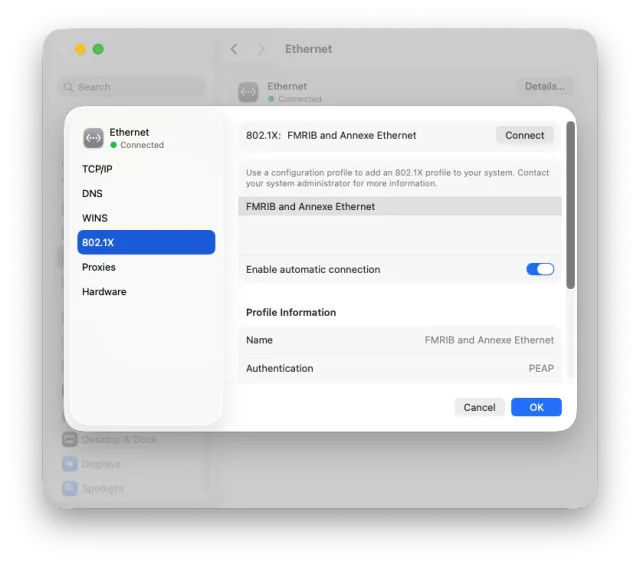
Click on 'Details...' then select '802.1x' from the sub-window.
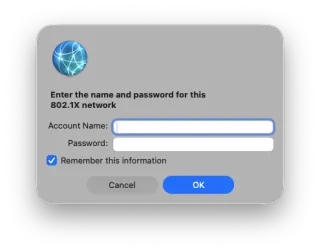
If you have more than one 802.1X profile (you might have one for Eduroam), then you will need to select it from the drop-down menu next to 802.1X. Then click Connect.
In the credentials window enter your Eduroam/University Remote Access credentials (e.g. sso@OX.AC.UK) - tick the box to allow for automatic connection in the future.
By default, unauthenticated devices will be on the OWL Visitor network which has no internet access. To access the internet you need to authenticate.
To setup the required certificates and configuration, download and install our mobile configuration policy:
Once downloaded, double-click on fmrib_ethernet_settings-mobileconfig.zip to decompress, then double-click the FMRIB_Ethernet_Settings_Signed.mobileconfig file to stage the profile for installation.
No go to System Preferences > General > Device Management. You should see the profile at the top of this section. Double-click to start the review process.
A window will open asking if you are sure. Click the text (Not Verified) next to OxCIN (University of Oxford 2026) under the title of the profile.
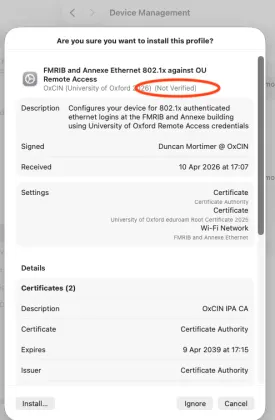
In the window that opens click 'Details' to expand and check that the SHA-256 fingerprint is:
Info
1F 02 3A 68 76 DC 9F 83 FC F3 5E 16 88 3B 32 72 05 6E 5C D9 CD 74 D4 37 96 90 67 D0 4D 4B 8D D3
If it does not match DO NOT install and contact computing-help. If it does, click OK to dismiss then click Install..., followed by Continue on the next sub-window.
When asked for username and password, you may enter your Eduroam/University Remote Access credentials (e.g. sso@OX.AC.UK) or leave blank to enter when you first connect. Click Install.
To authenticate, open System Preferences > Network and click on your ethernet adaptor.
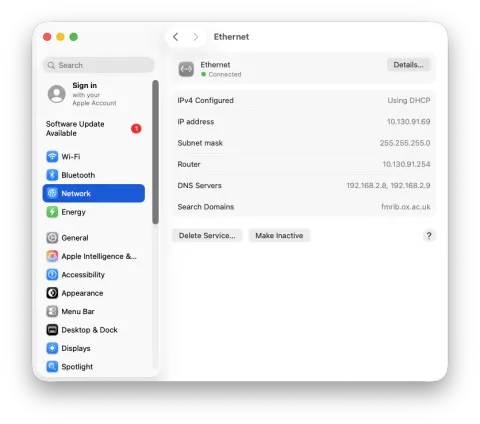
Click on Details... then select 802.1x from the sub-window.
If you have more than one 802.1X profile (you might have one for Eduroam), then you will need to select it from the drop-down menu next to 802.1X. Now click Connect.
In the credentials window enter your Eduroam/University Remote Access credentials (e.g. sso@OX.AC.UK) - tick the box to allow for automatic connection in the future.
By default, Windows devices will reside on the network 'OWL Visitor' - this has no internet access but short-term credentials can be created for visitors only.
To get a working ethernet connection as an Oxford University or Eduroam user, you will need to configure your computer with a certificate and a set of authentication settings. To simplify this, we have packaged a script available here:
Windows 11 configuration script
Once you have downloaded this ZIP file, right-click on it, select Extract All and a destination, e.g. Desktop. Go to the extracted folder and double-click on SetupEthernet-RUNME.cmd - if required you will be prompted for the name and password of an administrator and then the script will ask for confirmation before running.
The script will:
- Install the Oxford University 'Eduroam' (if you use Eduroam you already have this)
- Setup '802.1x' authentication on your 'Ethernet' adaptor with the correct settings, enabling the features that allow for authentication
- Trigger a reconnect on your ethernet connection
Signing in
You should see a pop-up window in the bottom left of your screen asking you to sign in. Click the Sign-in link to go to the Ethernet settings window - if it doesn't automatically open a login window, click the Sign-in button here. In the login window enter your Eduroam/University Remote Access credentials (e.g, sso@OX.AC.UK). The username and password should be automatically remembered such that future logins are automatic.
Troubleshooting
If you are experiencing login errors then please check your remote access password using the University Remote Access logs page. In particular, if this site reports a miss-match between the servers then try resetting your password at register.it.ox.ac.uk.
Before connecting any device to the OHBA wired network, please contact us to ensure that your device is properly configured and setup according to the University's regulations. For personal devices, you will need to register with MSD-IT.