VNC Access to Workstations
Linux workstations in FMIRB and OHBA can offer remote access to a desktop environment using the VNC protocol. See the sections below for details on how to start the VNC service, connect to your session, shutting down sessions and building specific instructions.
There are two options for VNC on Linux desktops, a standalone, multi-user VNC desktop or a mirror of the local display. The later is appropriate if the machine is dedicated to your use, but be aware that people in the building will be able to see what you are doing if your display is switched on. They keyboard and mouse also continue to work!
Warning
Always lock your remote screen if you are going to leave it unattended for more than a few seconds, and do not view sensitive information.
The multi-user VNC server will not be able to utilise any GPU resources for improved graphics performance but content will not be shown on the local display so this mode is suitable for sensitive information and there is no need to lock the remote screen when leaving unattended.
To start a local display mirror use the command:
The display to connect to in this instance is :0, e.g. port 5900.
To start a separate, multi-user VNC session use:
Note
Example output:
New 'mydesktop.fmrib.ox.ac.uk:1 (auser)' desktop is mydesktop.fmrib.ox.ac.uk:1 Starting applications specified in /homes/auser/.vnc/xstartup Log file is /homes/auser/.vnc/mydesktop.fmrib.ox.ac.uk:1.log In this example the display number is 1.
If you think you already have a session running, use vncserver -list to check and to obtain your display number if you do.
To connect to your VNC server session you need a VNC viewer application of which we support TigerVNC Viewer. Windows, macOS clients are available from the link on https://tigervnc.org/ and Linux clients should be available via your distributions software store. We recommend version 1.13.0+, especially on macOS where 1.12.0 is known to have issues with it's settings control panel.
Connections desktops (where allowed) and workstations are only via the building local network or the appropriate VPN service (FMRIB VPN for FMRIB based computers or MSD-IT VPN for OHBA).
In all cases, VNC connections are only supported over an encrypted SSH tunnel.
Once you have a VNC server running (see appropriate building-specific instructions) you need to know the display number, add this to 5900 and this is the port number you need to tunnel. For display 10:
Now you can use the Tiger VNC client to open the display.
Connecting to a tunnelled vnc display
With the software installed/downloaded run the viewer application (double click the application on macOS and Windows or run the vncviewer program from a terminal or Linux desktop panel menu).
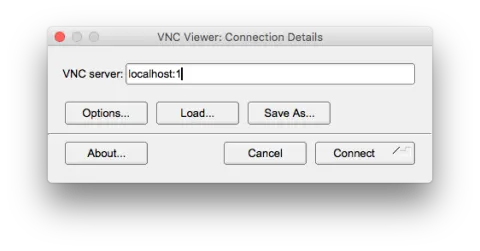
When the viewer starts you are presented with the connection details window, enter localhost:<displaynumber>, e.g. localhost:1 if you have display number 1.
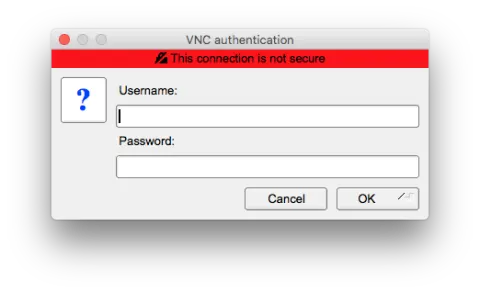
You will then be presented with a login dialogue box:
Note
The red-banner indicating that the connection is not sure is not relevant here as the VNC viewer doesn't know that the session is running over a SSH connection so can be ignored in this specific case.
Log in with your workstation's computer account name and password (OxCIN computer account in FMRIB or MSD-IT account in OHBA). You will now be presented with a view of your desktop, the LXQT environment.
Troubleshooting
If your connection fails with an error message saying "No valid vencrypt" or "No valid security types", please restart TigerVNC, click on the Options button, then select the Security tab. At this point, you should untick the Authentication Types None and Standard VNC. Your settings should now be as shown at the bottom of the image below:
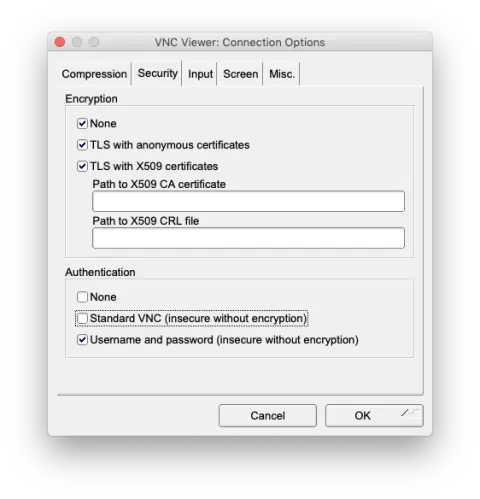
Then continue connecting as per the above instructions.
For shared machines it is important that you shut down your VNC server when you have finished to ensure there are sufficient resources for all users of the computer. To shutdown your server, either use the Leave > Logout panel menu option or in a terminal issue the command:
e.g. if you have display number 1
Connections are only possible from the OHBA/Psychiatry network or remotely using the MSD-IT VPN client. Users require a Linux enabled MSD-IT account.
To use VNC you first need to identify the workstation you will be using. Consult your OxCIN PI or OxCIN IT support if you are unsure.
Connections are only possible from the FMRIB laptop network or remotely using the FMRIB VPN client.
To use VNC you first need to identify the workstation you will be using. Consult your OxCIN PI or OxCIN IT support if you are unsure.
If vncserver fails to start this might be because of an interaction with conda. Try conda deactivate to exit from conda environments and retry the vncserver command. You may need to do this twice if the terminal prompt still lists (base) try a second conda deactivate to fully exit and then another vncserver command.
vncserver -list should then report your server is running.