Interactive Sessions
OOD offers several interactive web-apps for various software packages along with a general purpose Linux based desktop environment.
The menu item Interactive Apps can be used to select from these, or use the large icons on the home page of OOD.
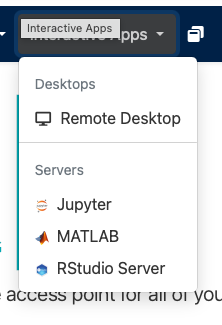
Each app has a configuration page that allows you to specify job requirements and customisations for your particular job. Common to all will be a job time limit, memory and core requirements and whether the job requires a GPU card. The Remote Desktop section below describes these options, with the other app sections below commenting on the specific options for them.
Warning
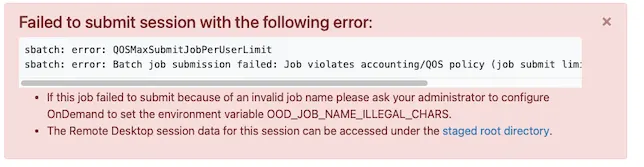
When requesting one of these sessions, if you receive a red error box mentioning QOS, then you have requested a second session of this type - we do not allow this for fair-share reasons.
Starting and using a Linux remote desktop
When you select the Remote Desktop option from the Interactive Apps menu you will be presented with a form to define the facilities you require for your remote desktop session.
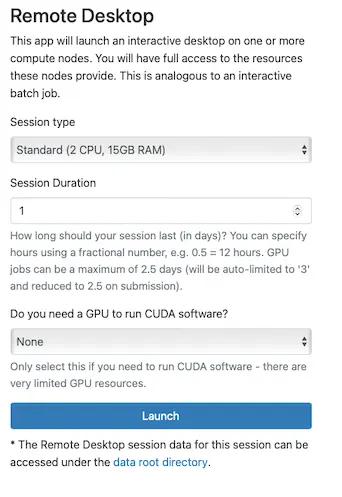
For most uses, the Standard session will be adequate, if you can use this option please do, as this ensures we can support many more sessions. This session will give you 2 (virtual) cores and 15GB of memory and is fine for running FSLEyes, web browsing, submitting cluster tasks and similar tasks.
Next enter a duration - minimum 0.1 day, maximum 10 days. This is the maximum duration of your session, and fractions allow for the requesting of sessions lasting from 2.4 hours.
Finally, if you job absolutely requires a CUDA device then you can select the GPU type from the drop-down menu, which will expose an additional option for quantity of GPUs (default 1). The duration of your session will auto-adjust if it is greater than the maximum allowed on a GPU (60 hours) - you will see '3' in the duration box (due to the way the web site works), but this will be reduced automatically to 60 hours when the session is requests.
Note
Selecting a GPU will not give a 3D accelerated desktop, the GPU can only be used for CUDA based/ML tasks.
Warning
We have very limited numbers of GPU enabled hosts, so you may experience significant delays in obtaining your session.
Now click on Launch to request a desktop session.
If you are certain you need more resources than the default then you can select Advanced from the drop-down, revealing options for RAM and cores/threads. We have limited resources, so the RAM, in particular is in short supply, so any session requesting more than 32GB of RAM may have a significant wait before it can be fulfilled.
Accessing the desktop session
If you have just requested a session you will now be taken to the My Interactive Sessions page. If you are returning to OOD then you can find this page by clicking on the two overlapping squares (on large screens this also has a text label!). There may be a delay whilst your job starts on the cluster, during this period the pending job will have a blue section header. Once it is running this will turn green.
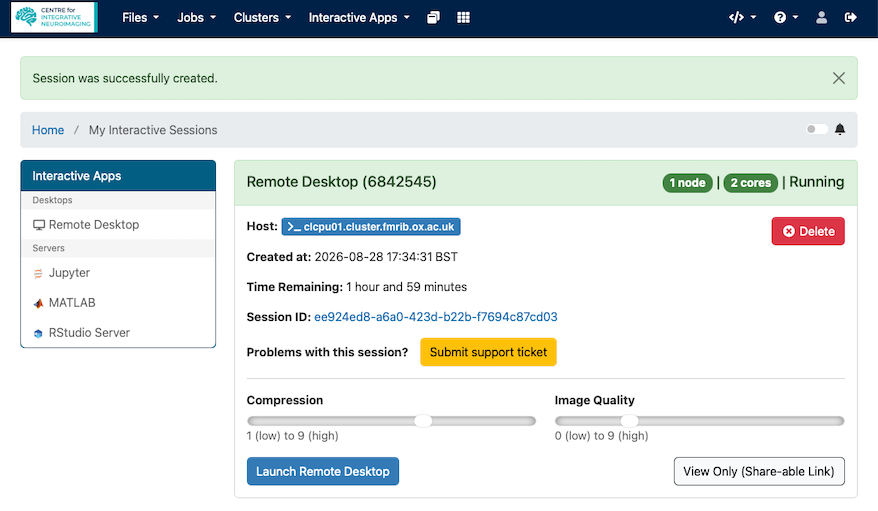
The desktop sessions use Virtual Network Computing (VNC) technology to provide the graphical interface and session card has the following information/links:
- The header shows the job ID (in parentheses) on the left, the number of course and state on the right (before the job is running the header is blue)
- Host details the cluster machine the job is running on, Created at, the start time, a count down of the time remaining for the session.
- The Session ID link takes you to a folder view for the job. This includes logs and files that may assist IT support when diagnosing problems, but ordinarily you don't need to look in here.
- Submit support ticket takes you to the support submission form.
- The Launch Remote Desktop button opens the web view of your remote desktop.
- The View Only (Share-able Link) button can be used to generate a URL that others can use to see what you are doing in the session - useful for when you need someone else to help you.
- The Delete button terminates this session - any unsaved work will be lost.
The two sliders along the bottom of the card allow you to adjust the compression level and image quality - increase compression and decrease quality if you are on a slow network link, e.g. WiFi or non-full fibre home internet connections.
Warning
Do not set compression to '0' - this is likely to cause 'Incomplete zlib block' errors in the VNC session.
The VNC session is provided by noVNC and runs a Mate desktop environment.
To the right of the view is the noVNC menu, click the tag to open the icon bar. The icons within are dependent on the device you are accessing from (touch devices get mouse options), but the basic icons are:
- 'A' - a palette with modifier keys that may not map to keys on your keyboard
- Clipboard - allows for capturing the desktop clipboard or sending your clip board to the remote server
- Cog - settings, ordinarily you don't need to change these, but you may wish to change the Scaling mode and quality sliders.
- The final icon disconnects you from noVNC - once disconnected, your current VNC session is terminated - to return to your desktop you will need to relaunch via the My Interactive Sessions page.
The Mate desktop
The Mate desktop has two panels by default, the top housing the application menus and application launcher icons (file browser, terminal, Firefox web browser and Thunderbird mail client by default) and on the far right the date and time. The bottom panel has a button to show the desktop and then on the far right, four virtual desktop switchers allowing you to organise your windows by task.
Most interactions with the OOD cluster will be via the terminal application which provides a command line from which you can launch FSL applications and submit to the cluster via fsl_sub. Most software packages need activating using environment modules - use the module commands to list/activate/deactivate.
Copy/paste
Copy and paste is provided by the clipboard icon in the noVNC tab to the left of the window. In here you can view the contents of the remote clipboard and paste text to send to the remote host. Some browsers, Chrome in particular, support direct synchronisation of local and remote clipboards - you will be asked if you wish to allow this when you initially connect.
Unfortunately, the Mate terminal application is not completely compatible with this mechanism, the keyboard short cut SHIFT-CTRL-v does not interact with this synchronised clipboard, so always use the terminal menu option for this or right-click and select paste from the pop-up menu to ensure you paste what you intended.
Launching Jupyter on the FMRIB Cluster
The Jupyter Interactive App allows you to launch a Jupyter session on the OOD cluster, which you can then interact with using a web browser.
Before you can launch Jupyter you need to prepare a script that will provide the jupyter command. Typically this would be achieved using a conda environment. As a basic example, create a conda environment jupyter using a desktop, shell or SSH session:
create a text file in your home folder called jupyter.sh containing:
In the Jupyter app launcher select the session type (Advanced will allow you to specify cores and memory), duration and whether you need a GPU - see the Remote Desktop tab for details.
Then enter the full path to the jupyter.sh file prepared earlier - /home/fs0/<username>/jupyter.sh (if in your home folder) in the first text field (first red arrow below)
Now choose from Jupyter Notebook, the classic view, or Jupyter Lab, which offers an Integrated Development Environment (IDE) interface.
Specify the startup folder, for example /vols/Scratch/
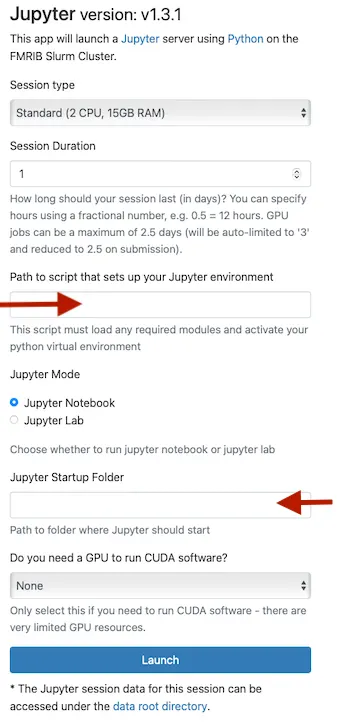
Click Launch to request your session.
You will now be taken to the My Interactive Sessions page where you can wait for the job to launch.
Once the card heading turns green (from blue), your session has started and you will find a button Connect to Jupyter that will launch your web session.
Note
At present, unlike other interactive apps this will not launch a new tab/window - we do not currently understand why this occurs.
For advice on solving common issues see our [Jupyter] page.
MATLAB sessions on the OOD cluster
The Open OnDemand Interactive Apps/MATLAB option allows you to start an interactive session housing only MATLAB. Whilst you can of course use MATLAB via the Remote Desktop app, this option uses less server resources, and can be considered to be similar to 'ssh -Y' but with session persistence.
The MATLAB app configuration form required the following information:
- Session type/Session duration/GPU and memory/cores (when Advanced selected)- see Interactive Desktop for description of options.
- MATLAB version - 'default' will choose the newest version installed, or you can choose a specific version.
- Extra modules script - this allows you to specify the full path to a text file that will load environment modules before starting MATLAB.
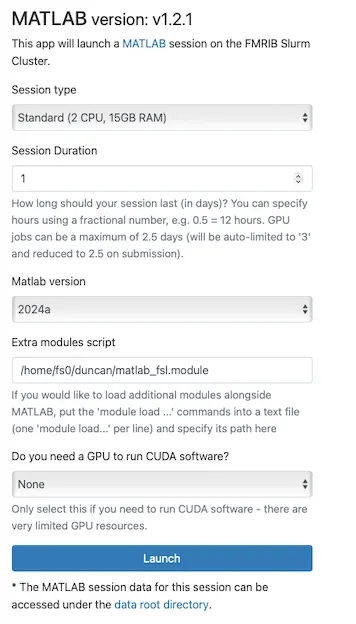
Click Launch to submit your job to the queue.
You will now be taken to the My Interactive Sessions page where you can wait for the job to launch and then launch the VNC session - see the Remote Desktop tab for details on using the VNC viewer.
Running RStudio on the OOD cluster
The Open OnDemand server allows you to run RStudio via a cluster job.
To start a session, select RStudio Server from the Interactive Apps menu, this provides a form you can use to setup your RStudio session, and requires the following information:
- Session type/Session duration/GPU (cores and RAM If Advanced selected) - See Remote Desktop for description.
- R Studio Server version - 'default' will use the latest version installed, or you can select a specific version (if available) using the drop down menu.
- Extra modules script - if you need to load any environment modules before starting R, create a text file containing the appropriate
module loadcommands and specify the full path to the script here. See the R page for further details on modules.
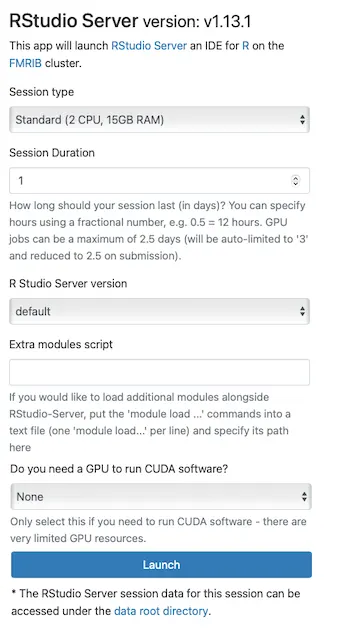
Click Launch to submit your session to the queues.
You will now be taken to the My Interactive Sessions page where you can wait for the job to launch.
When your job is running (the card heading has turned green), you can use the Connect to RStudio Server button to open a new web bowser tab with your session within.