FMRIB Open OnDemand Service (OOD)
The FMRIB cluster offers a virtual Linux desktop facility allowing you to run graphical programs on our central servers. This service is accessed via a web browser, allowing use from virtually any computing device with a display.
Access to this service is limited to University of Oxford networks (including Oxford's Eduroam WiFi), so if you are accessing from outside of these locations you will need to connect to a University VPN service first.
To access this facility visit the web site https://ood.fmrib.ox.ac.uk and use your OxCIN computer account credentials to login.
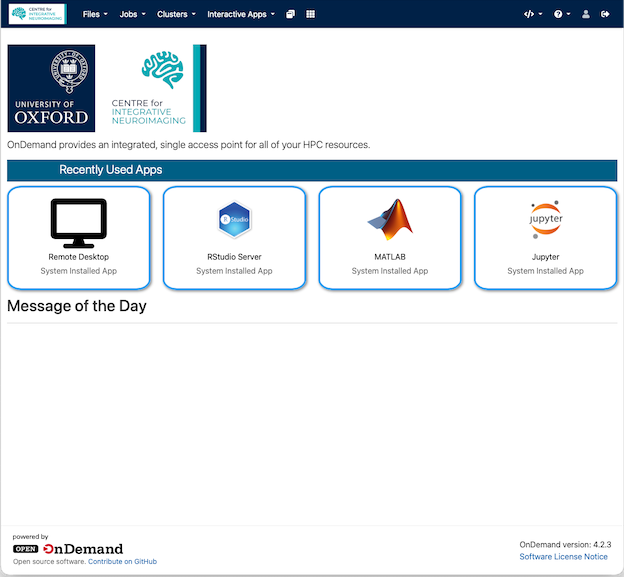
Along the top of the screen there are the following menu options:
- Files - a file system browser
- Jobs - a cluster job viewer and composer
- Clusters - a short lived interactive shell session
- Interactive Apps - the interactive desktop and other graphical services including Jupyter, RStudio and MATLAB
- My Interactive Sessions (usually only visible as two overlapping squares) - your currently running interactive apps.
- 3x3 Square - all features in a table
On the right of the screen you will find:
</>- (forward-slash in angle brackets) Used to restart the OOD web service if you are having issues- - (?) Help menu
- - (square + arrow) Logout
Note
Please do not attempt to launch more than one desktop environment/MATLAB session to ensure fair share of resources.
The Files menu has two options within, links to your home and scratch folders. Select the location you would like to visit - for access to a /vols/Data location, choose either option and then change the folder in the file browser.
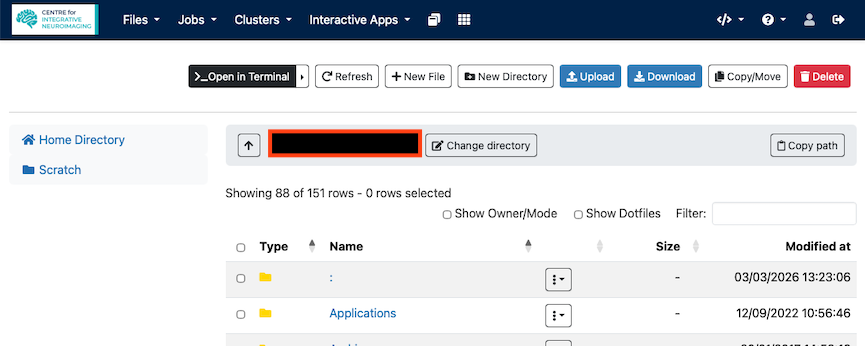
The Files interface allows you to examine your folders, upload and download files, add new files and directories and view select file types (those that a web browser understands, e.g. text files and images/videos).
The Open in Terminal option will launch a Clusters > FMRIB Cluster Shell Access session in the currently displayed folder.
Refresh will update the view to take account of any files/directories modified on other computers.
To access /vols/Data folders, click on Change directory and then enter the full path to the folder you wish to view.
The Clusters menu item allows you to start an interactive text session on our interactive Linux server clint.fmrib.ox.ac.uk.
Warning
This session will only remain running whilst you are connected to VPN/University network and have the browser tab open. Any task left running when the connection is lost will terminate. For long running tasks please use the interactive desktop facility.
The Jobs menu has two options, Active Jobs and Project Manager (Job Composer is deprecated).
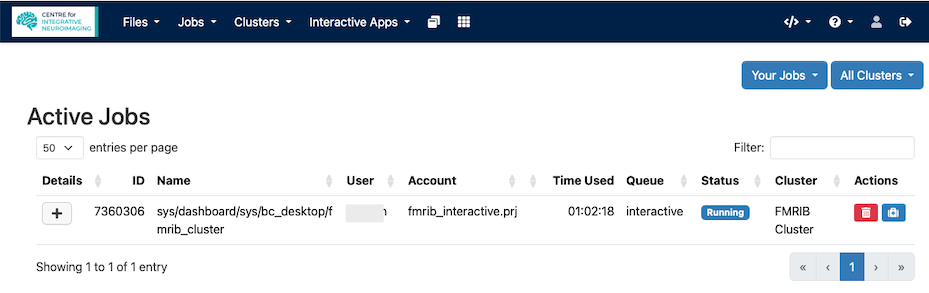
The Active Jobs option will present a view of your cluster jobs.
At the top of this view you can change Your Jobs to All Jobs to get an overview of the whole cluster state and use the filter box to identify specific jobs.
Using the (trash can) you can remove jobs that you know to be pointless due to errors in submission.
The (suitcase) can be used to start a support ticket against this job.
The Job Composer allows for the submission of jobs - we would ordinarily recommend the use of the fsl_sub command inside an interactive desktop or shell session, so use of this facility is not covered here.