FMRIB VPN
Connection to the FMRIB VPN Service
The FMRIB VPN service requires the use of FortiClient VPN and uses secure web technology to encrypt traffic (TLS) so should operate from networks that restrict use of the legacy IPSec VPN protocol.
Note: Only traffic destined for the FMRIB or University networks will route from your computer through the FMRIB VPN (you may hear this referred to as 'split-tunnelling'). Other University traffic (e.g., YouTube, Microsoft Teams) will travel out via your internet service provider (ISP). If you need access to a service that requires you to appear to come from a University address then please contact us for advice.
Setup instructions: - macOS - Windows - Linux
macOS setup instructions
Apple macOS VPN client configuration - Orchard managed - macOS 13 (Ventura) onwards - macOS pre-13
Orchard managed
Installing and setting up FortiClient on Orchard managed hosts
Installation
- The FortiClient software can be installed from the Self Service application (green/blue/red/orange rotated square icon). You will find it in the 'All' section.
- Click the 'Install' button to begin installation.
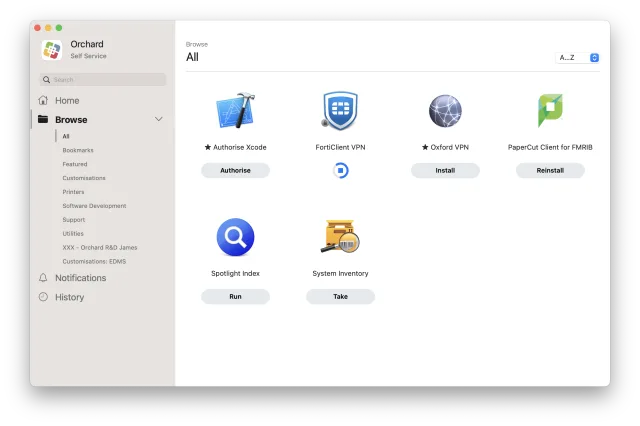
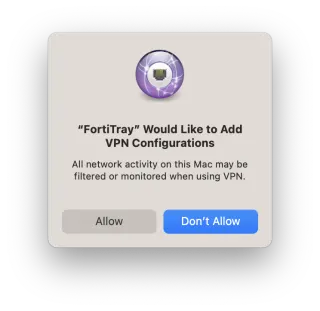
- Once installed, you will be asked to approve the addition of a VPN configuration - click 'Allow'.
- FortiClient is now installed and can be configured.
Configuration
- Launch the FortiClient application.
- Accept the terms of use.
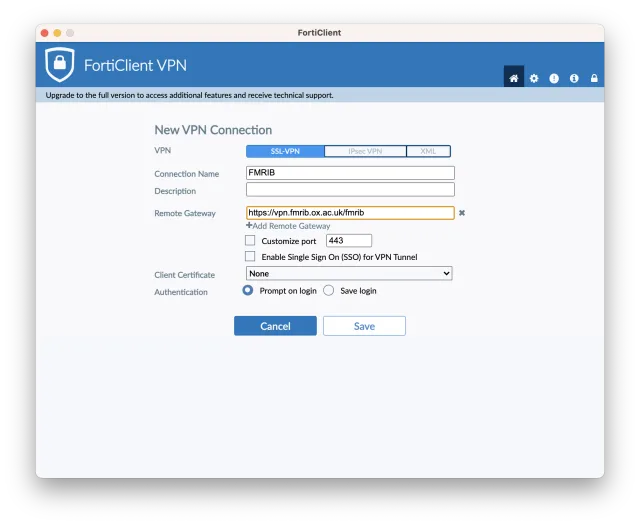
- Click on the 'Configure VPN' button.
- On the 'New VPN Connection' page, select 'SSL-VPN'.
- Enter a suitable connection name, such as 'FMRIB VPN'.
- Enter
https://vpn.fmrib.ox.ac.uk/fmribin the Remote Gateway field. - Leave the 'Customise port' and 'Enable Single Sign On (SSO) for VPN Tunnel' turned off, 'Client Certificate' set to 'None' and 'Authentication' set to 'Prompt on login'.
- Now click 'Save'.
You should now be able to connect to FMRIB via VPN.
macOS 13 (Ventura) onwards
Configuring FortiClient on macOS 13+
Installation
- From the Fortinet downloads page, download 'FortiClient 7.0 VPN-Only'.
- Double click on
FortiClientVPN_OnlineInstaller.dmgto open the installer container and run the ForticlientUpdate.app within. This will download the required components. This download step can take some time and even fails from time to time. - Once installed, you will be asked to approve the addition of a VPN configuration - click 'Allow'.
- FortiClient is now installed and can be configured.
Configuration
- A FortiClient icon should be visible at the top-right of the screen. Click the icon and 'Open FortiClient Console'.

- Accept the terms of use.
- Click on the 'Configure VPN' button.
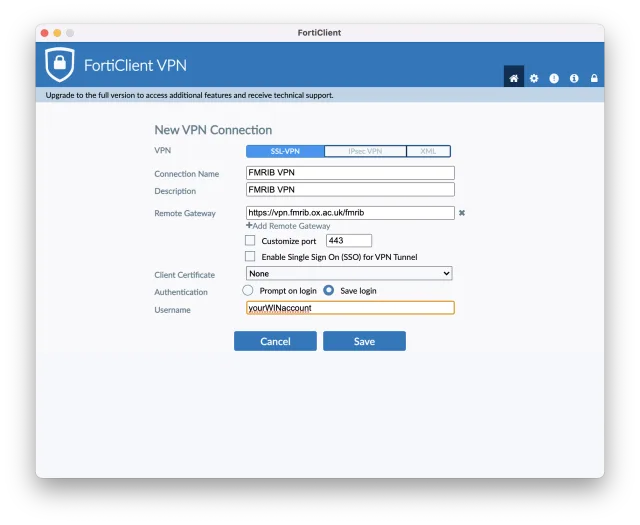
- On the 'New VPN Connection' page, select 'SSL-VPN'.
- Enter a suitable connection name, such as 'FMRIB VPN'.
- Enter
https://vpn.fmrib.ox.ac.uk/fmribin the Remote Gateway field. - Leave the remaining fields with their default values.
- Now click 'Save'.
You should now be able to connect to FMRIB via VPN.
macOS pre-13
Installing FortiClient on macOS 12 and below
Installation
- From the Fortinet downloads page, download 'FortiClient 7.0 VPN-Only'.
- Double click on
FortiClientVPN_OnlineInstaller.dmgto open the installer container and run the ForticlientUpdate.app within. This will download the required components. This download step can take some time and even fails from time to time. - If prompted permit the FortiTray System Extension by clicking 'Allow'. You may need to click the lock symbol in the top bottom left-hand corner of the System Preferences window.
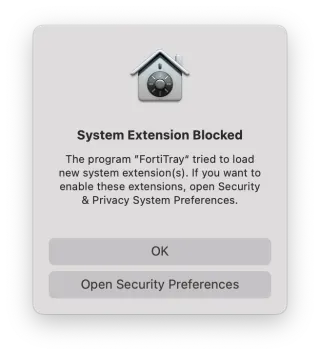
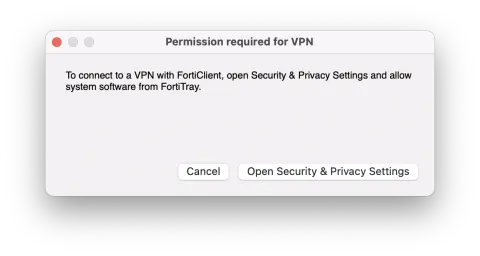
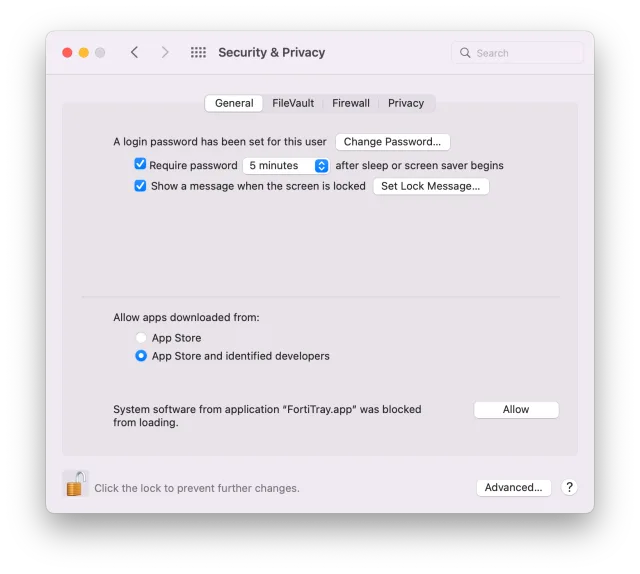
- Once installed, you will be asked to approve the addition of a VPN configuration - click 'Allow'.
- FortiClient is now installed and can be configured.
Configuration
- A FortiClient icon should be visible at the top-right of the screen. Click the icon and 'Open FortiClient Console'.
- Accept the terms of use.
- Click on the 'Configure VPN' button.
- On the 'New VPN Connection' page, select 'SSL-VPN'.
- Enter a suitable connection name, such as 'FMRIB VPN'.
- Enter
https://vpn.fmrib.ox.ac.uk/fmribin the Remote Gateway field. - Leave the remaining fields with their default values.
- Now click 'Save'.
You should now be able to connect to FMRIB via VPN.
Windows setup instructions
Installing and configuring FortiClient on Windows
Installation
- From the Fortinet downloads page, download the installer
FortiClientVPNOnlineInstaller.exe. - Right-click and choose ‘Run-as Administrator’ from the menu.
- Follow the prompts to complete the installation.
- FortiClient is now installed and can be configured.
Configuration
- Launch the FortiClient application.
- Accept the terms of use.
- On the 'New VPN Connection' page, select 'SSL-VPN'.
- Enter a suitable connection name, such as 'FMRIB VPN'.
- Enter
https://vpn.fmrib.ox.ac.uk/fmribin the Remote Gateway field. - Leave the remaining fields with their default values.
- Now click 'Save'.
You should now be able to connect to FMRIB via VPN.
Windows configuration follows the same SSL-VPN fields shown above.
Linux setup instructions
FortiClient is required for FMRIB VPN connectivity on Linux. - Ubuntu 22 - Rocky 9
Ubuntu 22
Ubuntu 22 FortiClient setup
Installation
- From the Fortinet downloads page, download the Ubuntu FortiClient .deb file.
- Double click on the downloaded file to open the software installer.
- Click the 'Install' button to install the software.
- FortiClient is now installed and can be configured.
Configuration
- A FortiClient icon should be visible at the top-right of the screen. Click the icon and 'FortiClient'.
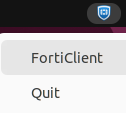
- Accept the terms of use.
- Click on the 'Configure VPN' button.
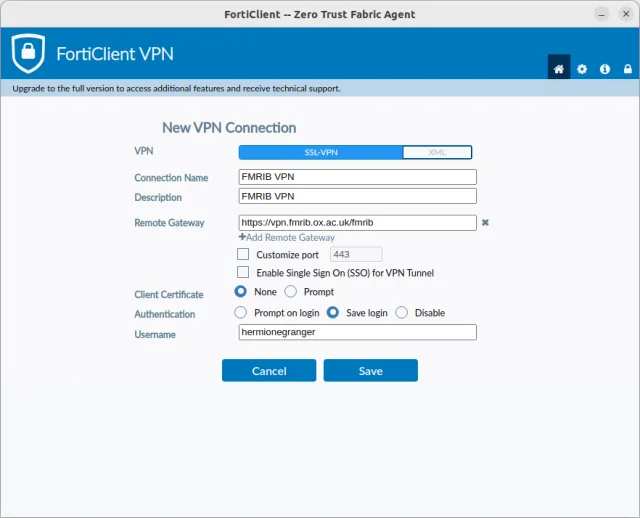
- On the 'New VPN Connection' page, select 'SSL-VPN'.
- Enter a suitable connection name, such as 'FMRIB VPN'.
- Enter
https://vpn.fmrib.ox.ac.uk/fmribin the Remote Gateway field. - Leave the remaining fields with their default values.
- Now click 'Save'.
You should now be able to connect to FMRIB via VPN.
Rocky 9
A guide to configuring FortiClient for FMRIB access on Rocky 9 computers
Installation
- From the Fortinet downloads page, download FortiClient VPN RPM package.
- Double click on the
forticlient_vpn_X.XX.XXXX_x86_64.rpmfile to open the software installer. - Click the 'Install' button to install the software.
- FortiClient is now installed and can be configured.
Configuration
- A FortiClient icon should be visible at the top-right of the screen. Click the icon and 'FortiClient'.
- Accept the terms of use.
- Click on the 'Configure VPN' button.
- On the 'New VPN Connection' page, select 'SSL-VPN'.
- Enter a suitable connection name, such as 'FMRIB VPN'.
- Enter
https://vpn.fmrib.ox.ac.uk/fmribin the Remote Gateway field. - Leave the remaining fields with their default values.
- Now click 'Save'.
You should now be able to connect to FMRIB via VPN.